Once you have created pages you can begin to edit and add content.
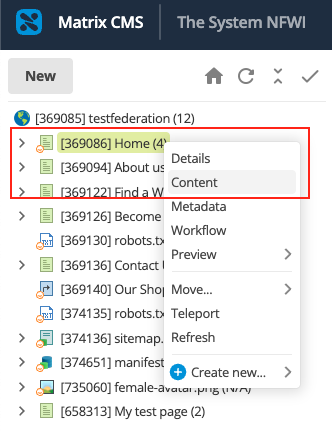
- Start by navigating to the page you would like to edit. The easiest way to do this is to use the Asset Tree, locate the page, right click and select 'Content' from the pop-up menu.
- Ensure that you are in "Safe Editing" mode. This will be indicated in the screen header (an asset will be labelled as a draft when it is in Safe Editing mode, and labelled as published when the asset is Live).


- If the page is Live, please switch to Safe Editing mode by clicking the asset status, click 'Start Safe Editing. and apply changes.

If the page hasn't yet been published and is "Under Construction" (a blue circle in the toolbar) then you don't need to worry about this step.
- If you haven't yet, make the page editable by clicking the "Edit" button in the screen header

- Click inside the Content Container and start editing! By default, the editing toolbar will be hidden, but as soon as you click your inside the Content Container you will see the editing toolbar.
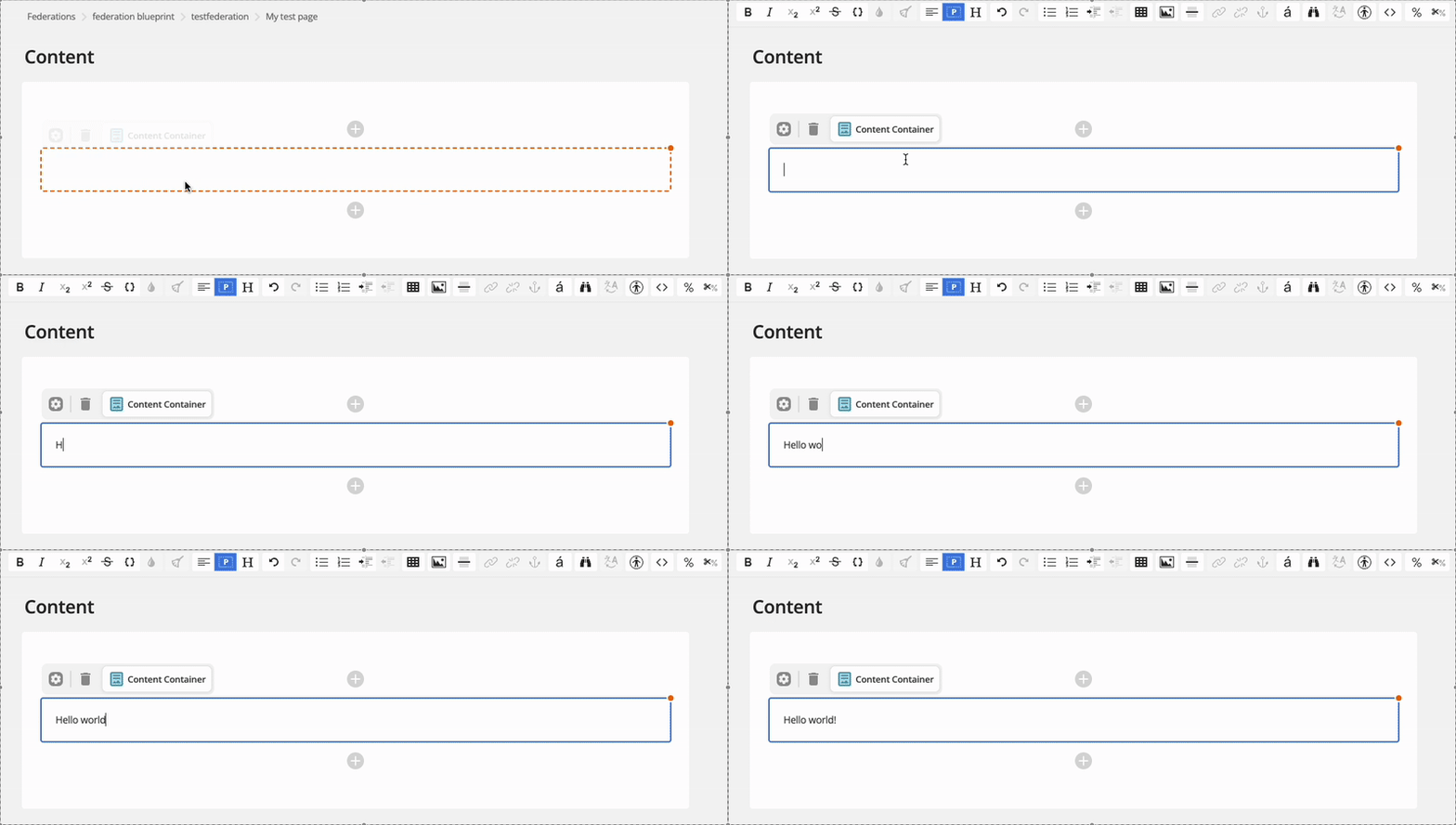
- This new toolbar is part of the WYSIWYG editor. If you are familiar with software such as Word you will be familiar with a lot of the icons already.

If, when using the Admin interface, you are unsure what an icon does, simply hover over it with your mouse and a title will pop up. If you would like a detailed explanation of each feature please refer to the WYSIWYG Editor chapter.
- Once you have added/edited page content and you are happy with the page you should always click the "Save" button to ensure that your changes are not lost. It's also a good idea to periodically save your changes every so often as you work.
- After saving, you can preview your changes by clicking the eye icon
 in the screen header (and return to the editor by clicking "Content").
 - Simply saving the page won't mean that your changes are visible to visitors - you still need to approve (for federation editors), or submit your page for approval (for WI editors) before you can make your pages Live.
The "Workflow" chapter explains the process in more detail.