A Federation homepage will look like the below. Click on the red dots to find out where you can edit these details.
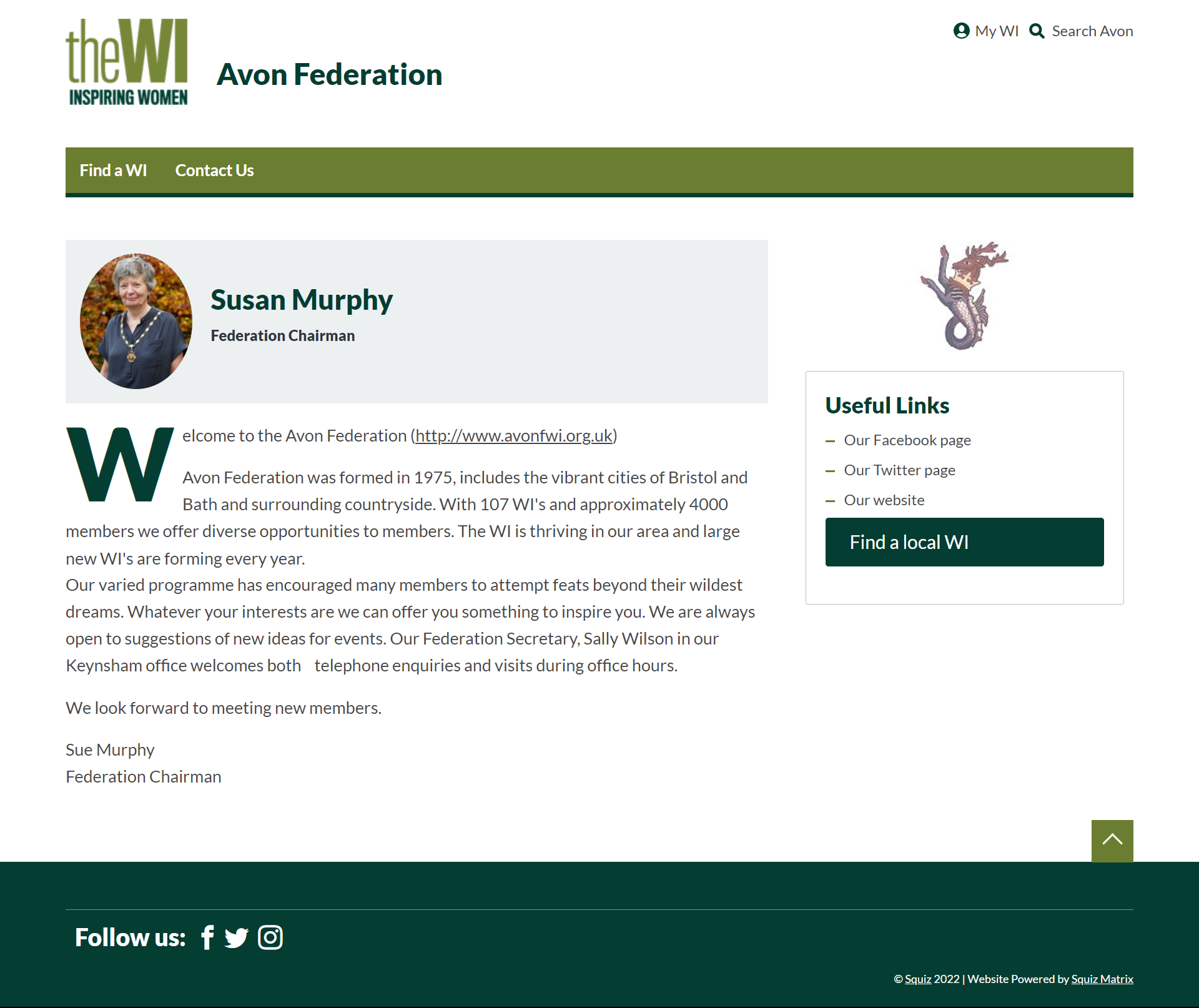
The Federation Chairman
The Federation Chairman's photo can be changed in the Site Metadata.
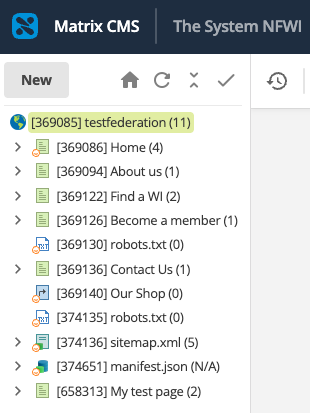
- Locate the Site asset using the asset tree
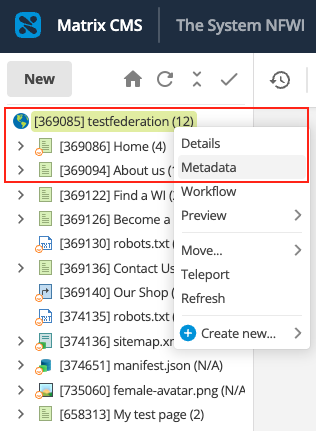
- Open the Metadata screen by right clicking the site asset and selecting Metadata
- Make the asset editable by clicking the "Edit" button in the screen header
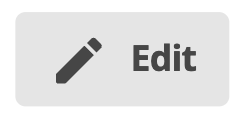
- Locate the photo under federation.lead.image
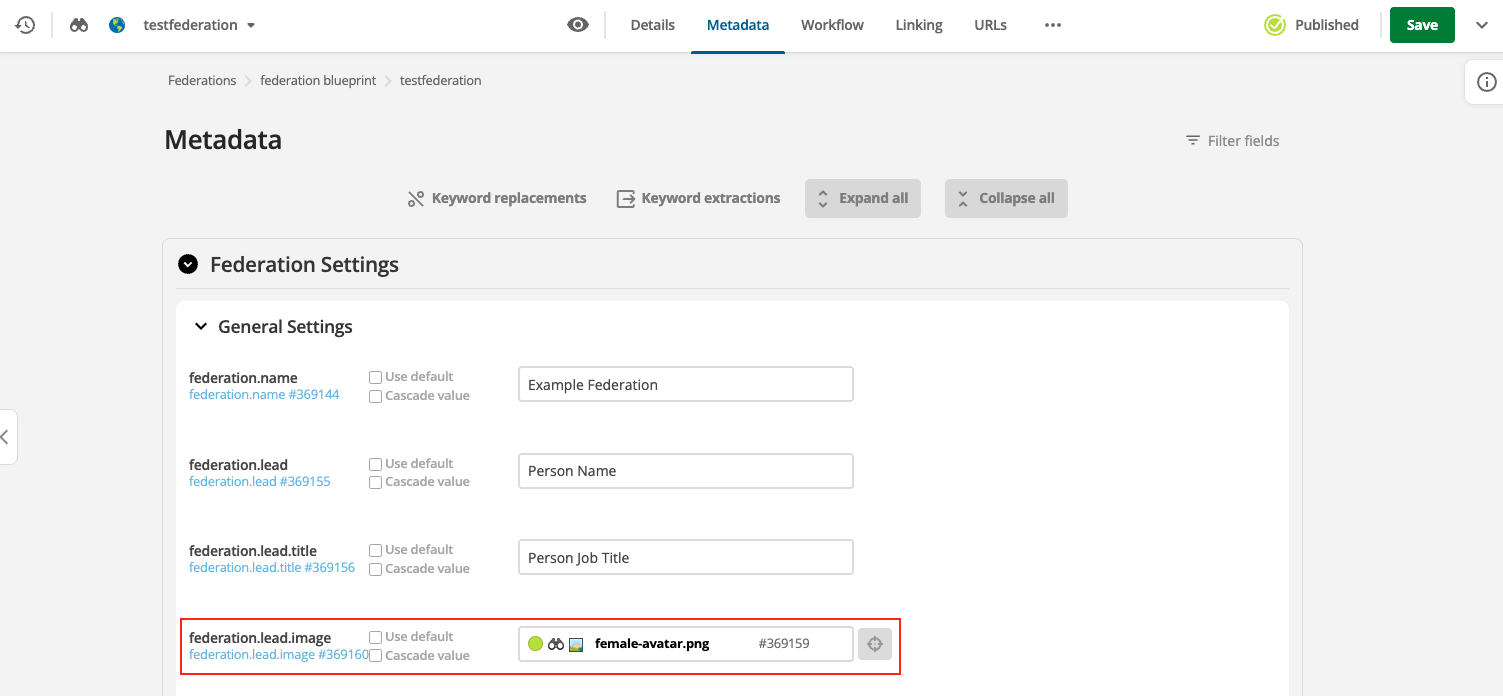
- Click the crosshair, right-click the asset you want to use and then click 'Use Me'
- Save changes
The Chairman's Name and Chairman's Title will be automatically populated from the Federation Chairman's details on the MCS.
To edit this, please amend your Federation's positions list on the MCS.
Federation summary
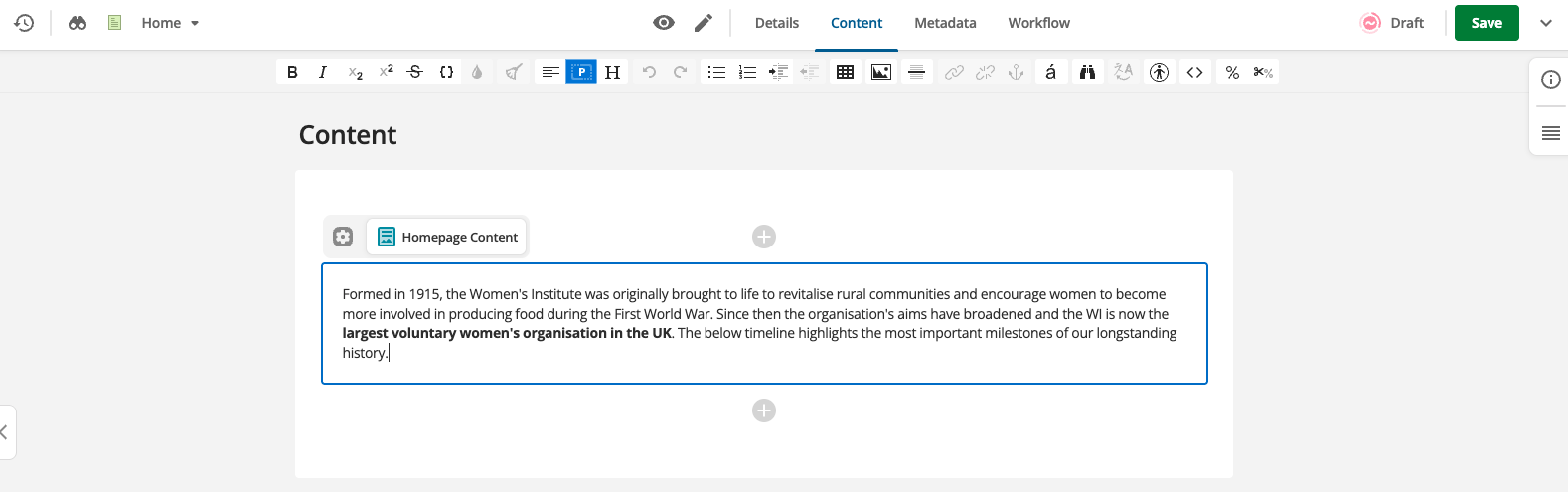
The Federation summary can be modified in the Home page asset, Content tab.
You can also access this via URL for example: https://avon.thewi.org.uk/home/_admin
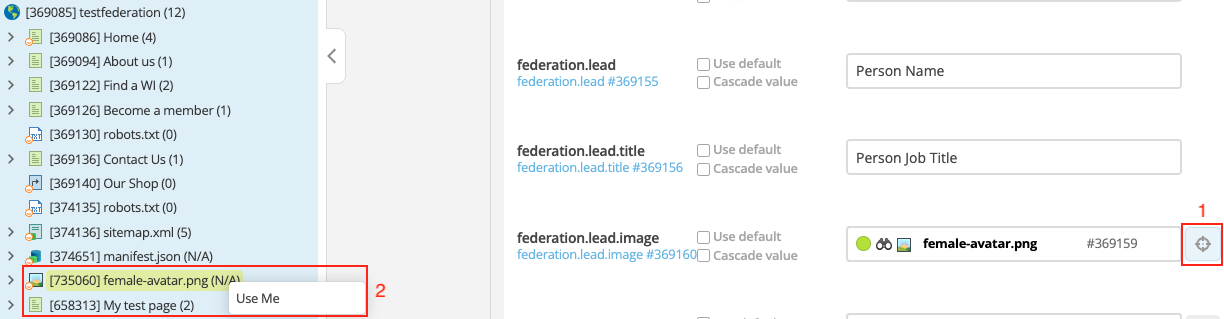
- Locate the Home page asset and right click to navigate to the Content screen
- Make the page editable by clicking the "Edit" button in the screen header
- Edit the summary and save changes
Federation Crest
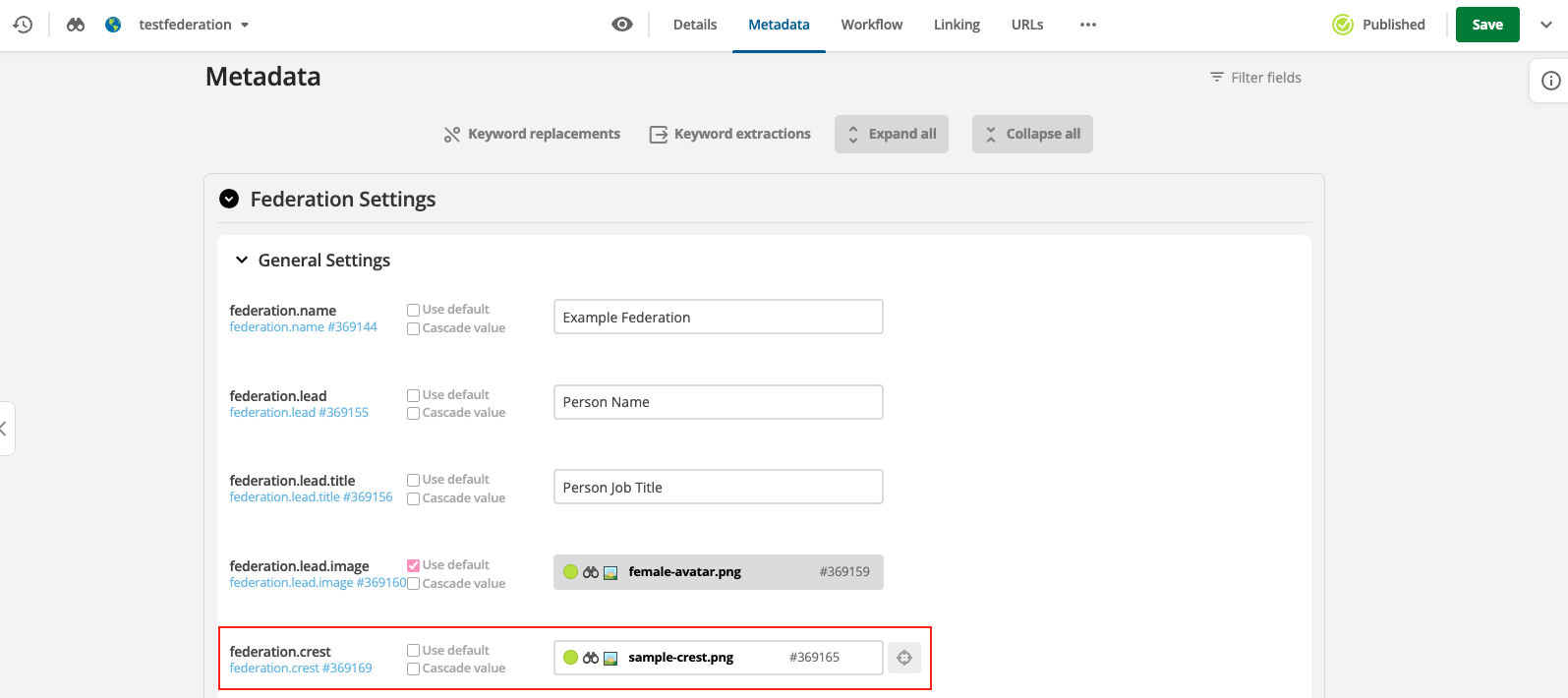
The Federation crest can be edited in the Metadata of the Site asset.
- Open the Metadata screen by right clicking the site asset and selecting Metadata
- Locate the photo under federation.crest
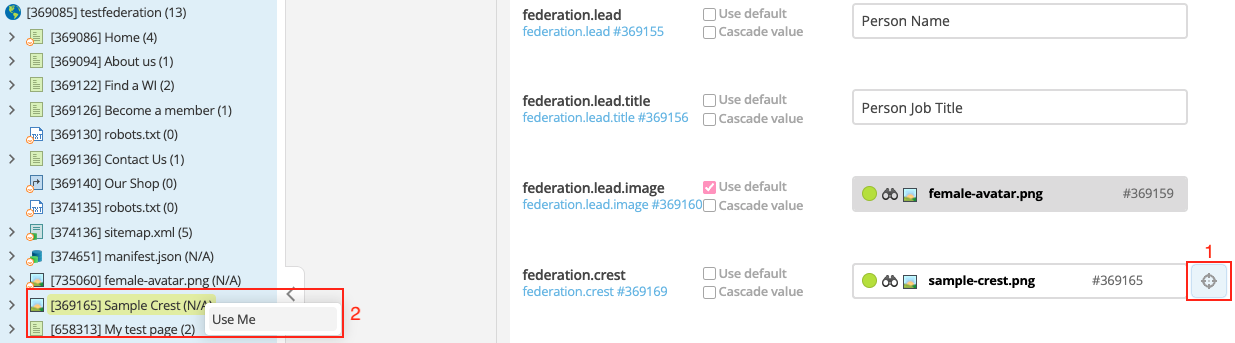
- Click the crosshair, right-click the asset you want to use and then click 'Use Me'
Save changes
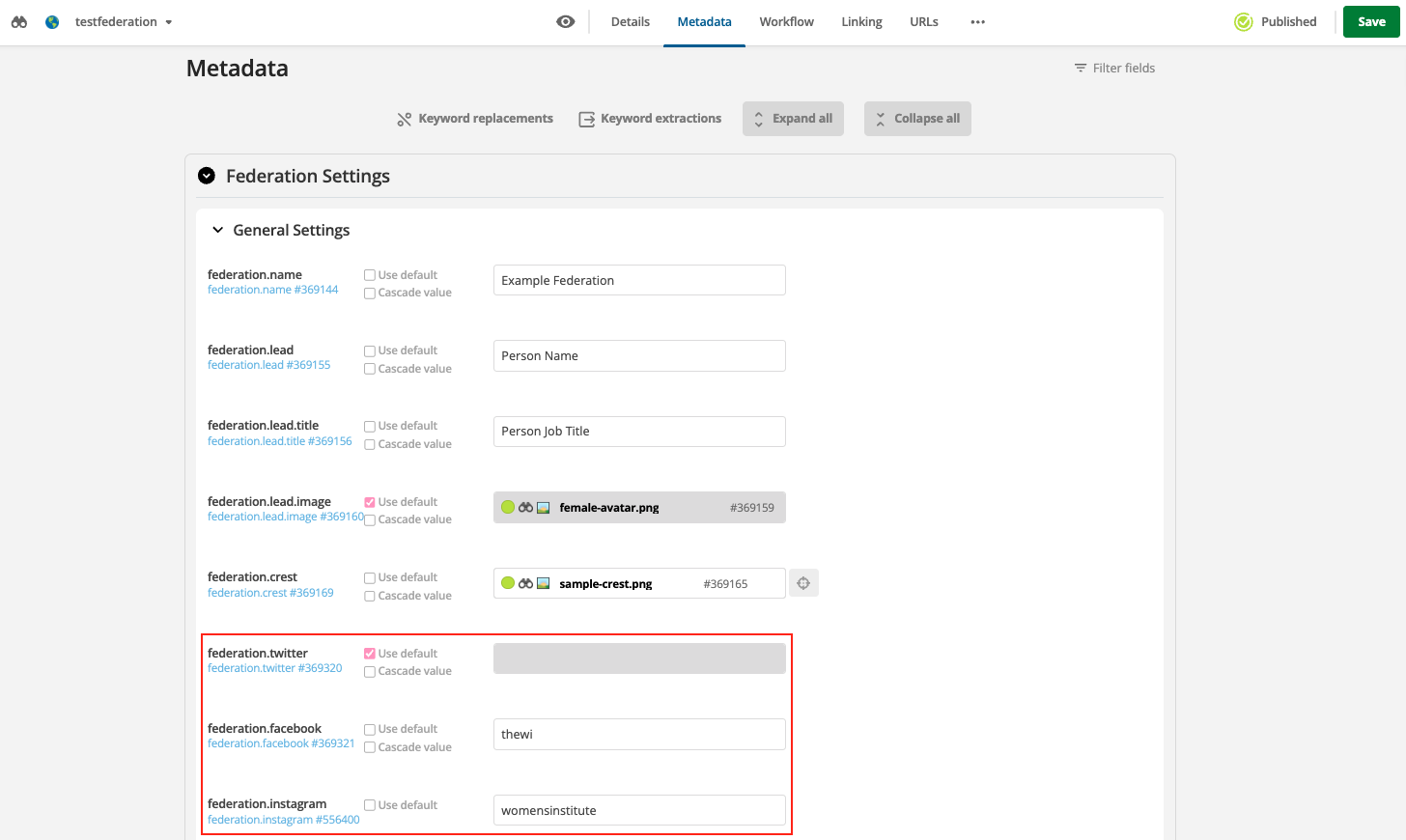
Your social media links such as Facebook and Instagram can be added in the Metadata of the Site asset.
- Open the Metadata screen by right clicking the site asset and selecting Metadata
- Edit your social media links and save changes
Additional links
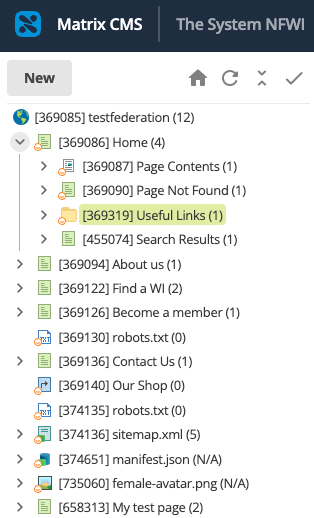
Additional Useful links can be added by creating a link asset in the Useful Links folder shown below.
- Navigate to the Useful Links folder using the asset tree
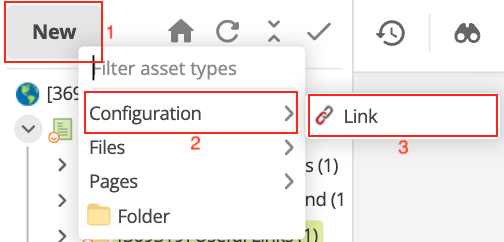
- Click on the New button to create a new link asset
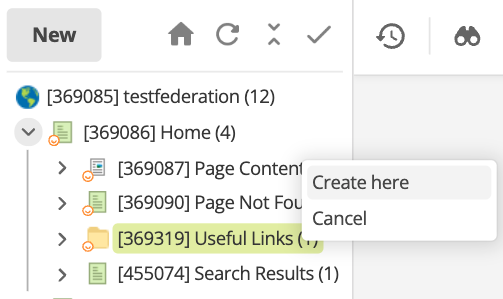
- Select the Useful Links folder to be the asset creation location
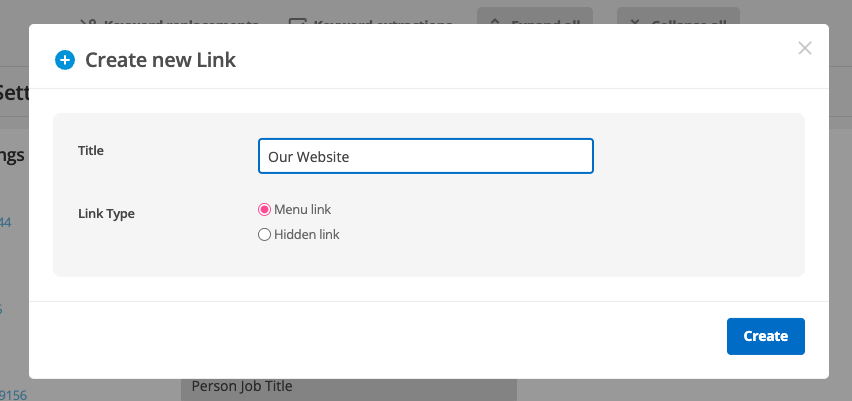
- Add the Title of your link, then click Create
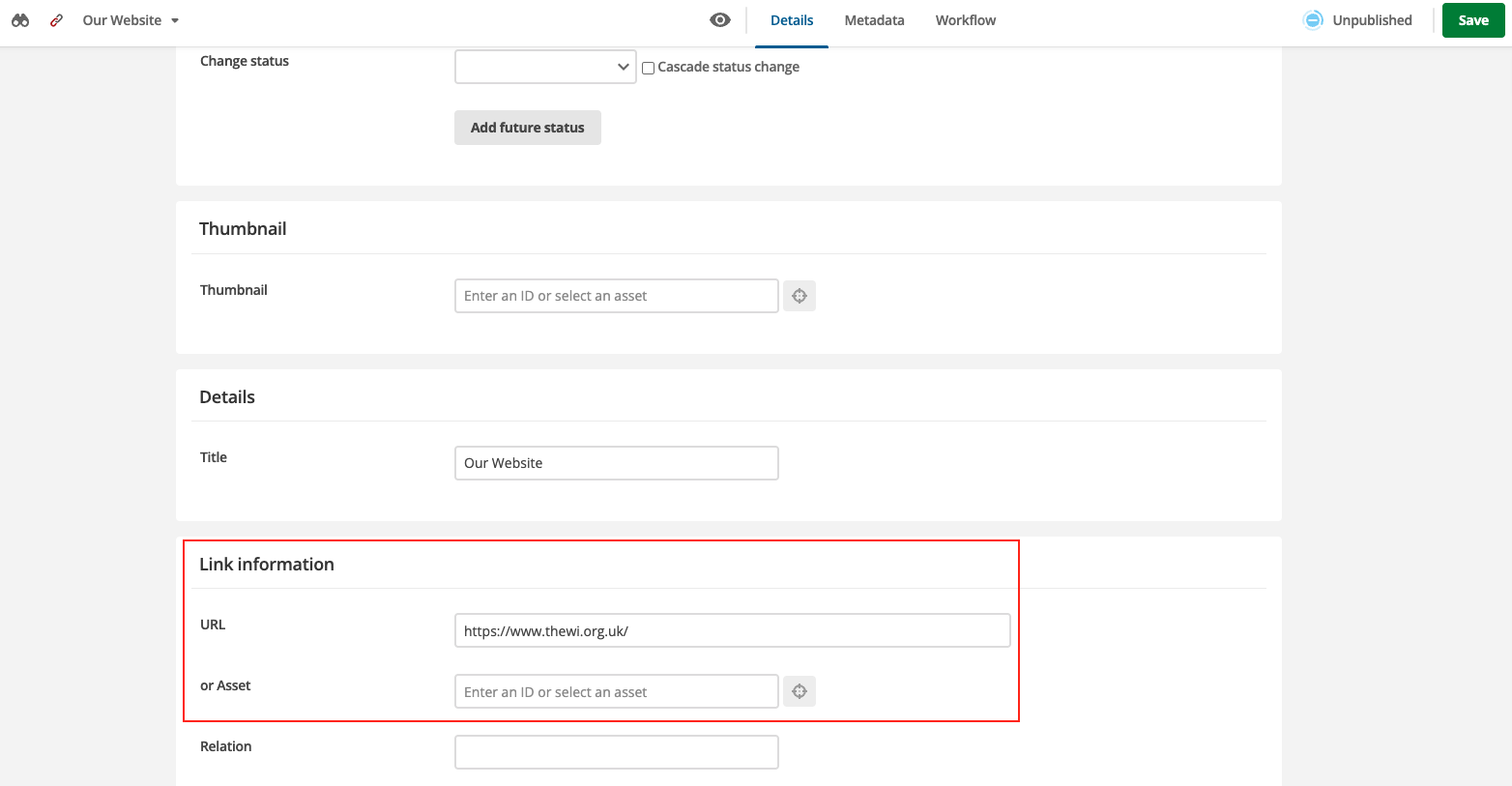
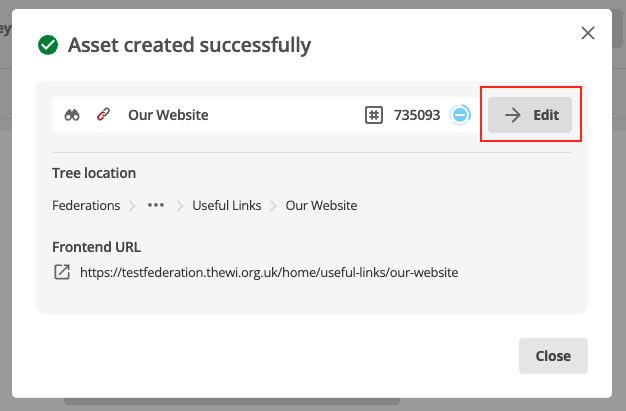
- Your asset has now been created. Click the Edit button to be taken to the Details screen to add the URL
- On the Details screen you will be able to link to a external URL or link to an asset within your site