We will now look at adding new pages into the system; these will be subpages under your main WI or Federation page.
The steps to create a page are always the same.
- To create a new page asset, first click the New button in the screen header.

- Hover your cursor over the Pages category and select Standard Page (every time you make a new page, use the Standard Page asset).

- Click on the asset that you would like the page to live under.
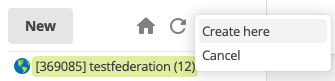
- For federations, most often you will be creating new pages as 'children' of the site:
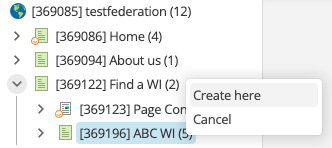
- For WIs, you will be creating pages as 'children' of your WI's overview page. You can find your WI's overview page by navigation from the federation site > 'Find a WI' > your WI page:
- Clicking create here will launch the Asset Creation Wizard.
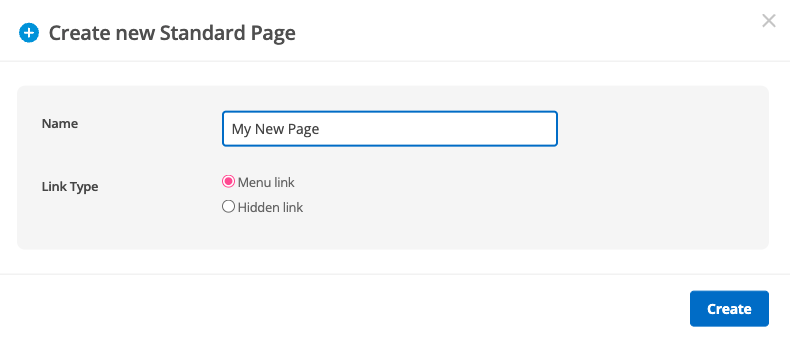
- Give your page a name.
This will be the name that appears in menus, as the header at the top of the page and as part of the URL. All three can be changed independently after creation, but at this stage the system assumes we want all three to be the same, which generally we do.
- Toggle Link Type accordingly. If you want the new page to show in the top or side menu, leave it as a Menu link. If you want to link to the new page from another without having it show in a menu, change it to a Hidden link.
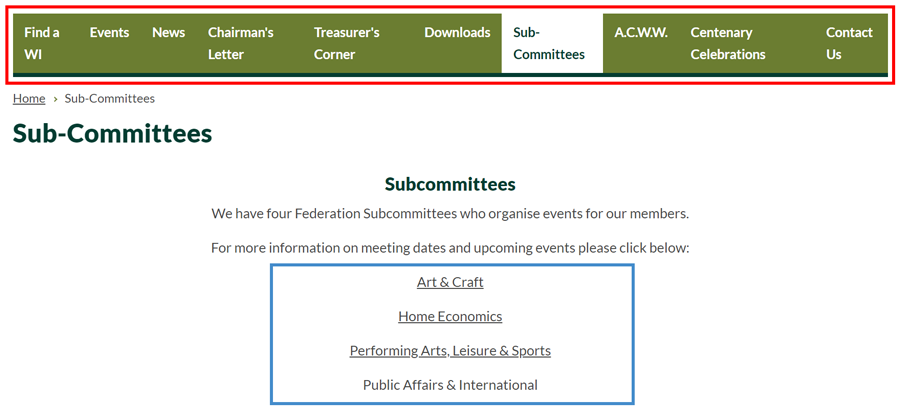
In the image below you can see the menu area highlighted. In this example we are on a "Sub-Committees" page. This page is an example of a Menu link since it is a key page.
Within the "Sub-Committees" page we can see links to further sub-pages, or child pages. The "Art & Craft" page, for example, lives under the "Sub-Committees" page but it is not necessary for it to show in the main menu, so this page is an example of a Hidden link.

- Editing the page is discussed in the Editing a page chapter.
Tip: Remember that your new page will be created with a status of "Under Construction" meaning it won't be publicly visible until approved and published.