WI Web Editors
A WI web editor cannot publish their own changes to the website: pages must be submitted for proof reading and approval by the federation prior to being made live.
This applies to both new pages and existing pages that have been edited. The system is set up this way for two main reasons:
- It never hurts to have an extra pair of eyes read over your content. It is important to remember that "thewi.org.uk" is the national website representing "The WI" as a whole. To a member of the public or to a journalist, it is likely that the content of a WI's page is largely indistinguishable from the content on any other page on the website. With that in mind we like to have another person proof-read any content that is going online to ensure that it is as error-free as possible.
- Formal training is offered to all federation web editors. Some federations will then hold their own training sessions, but WI web editors are likely to be self-taught. Having a trained pair of eyes scan over your content can help to ensure that you have configured your assets correctly, so they appear on the website in the way you intended. If any mistakes are spotted, help and support can be offered.
The process might seem complicated at first, but it is fairly simple.
Any page, picture, document etc. that you want to be publicly viewable on your website should ultimately have an Asset Status of "Live" (green).
If you have created or edited an asset and it isn't "Live" then you need to request approval for that asset.
- Ensure that your changes have been saved.
- Go to the "Details" screen for your asset.
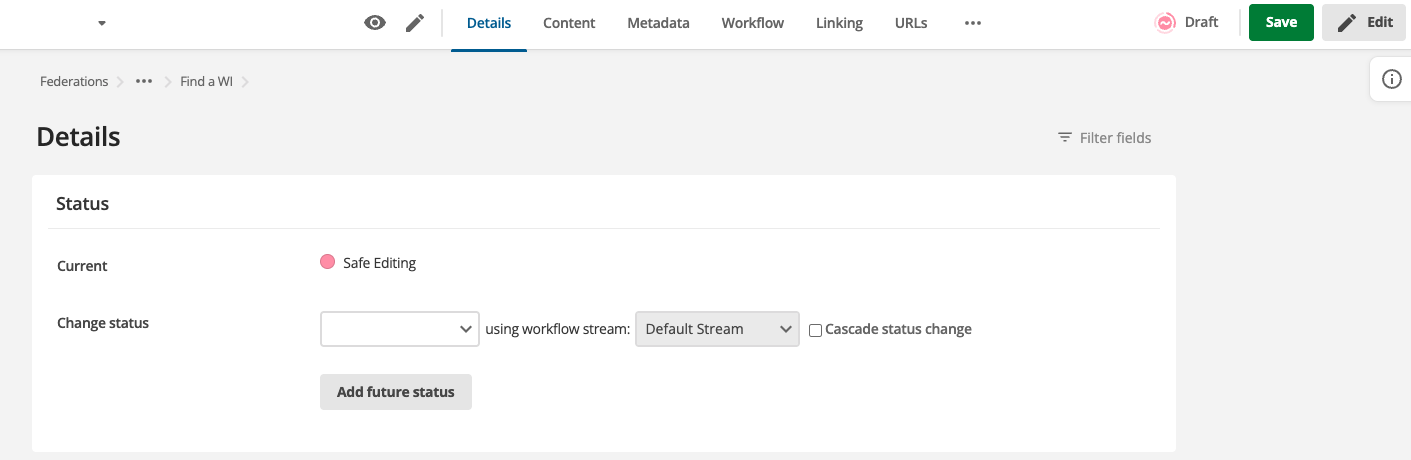
- On the "Details" screen you will see a section titled "Status" and inside it a coloured indicating the current status of the asset.
Underneath this you'll see "Change status", and to the right of it a drop-down box. From the drop-down you will need to select "Apply for Approval".
Leave the workflow stream set to "Default Stream". This will ensure your request is sent to your federation web editor.
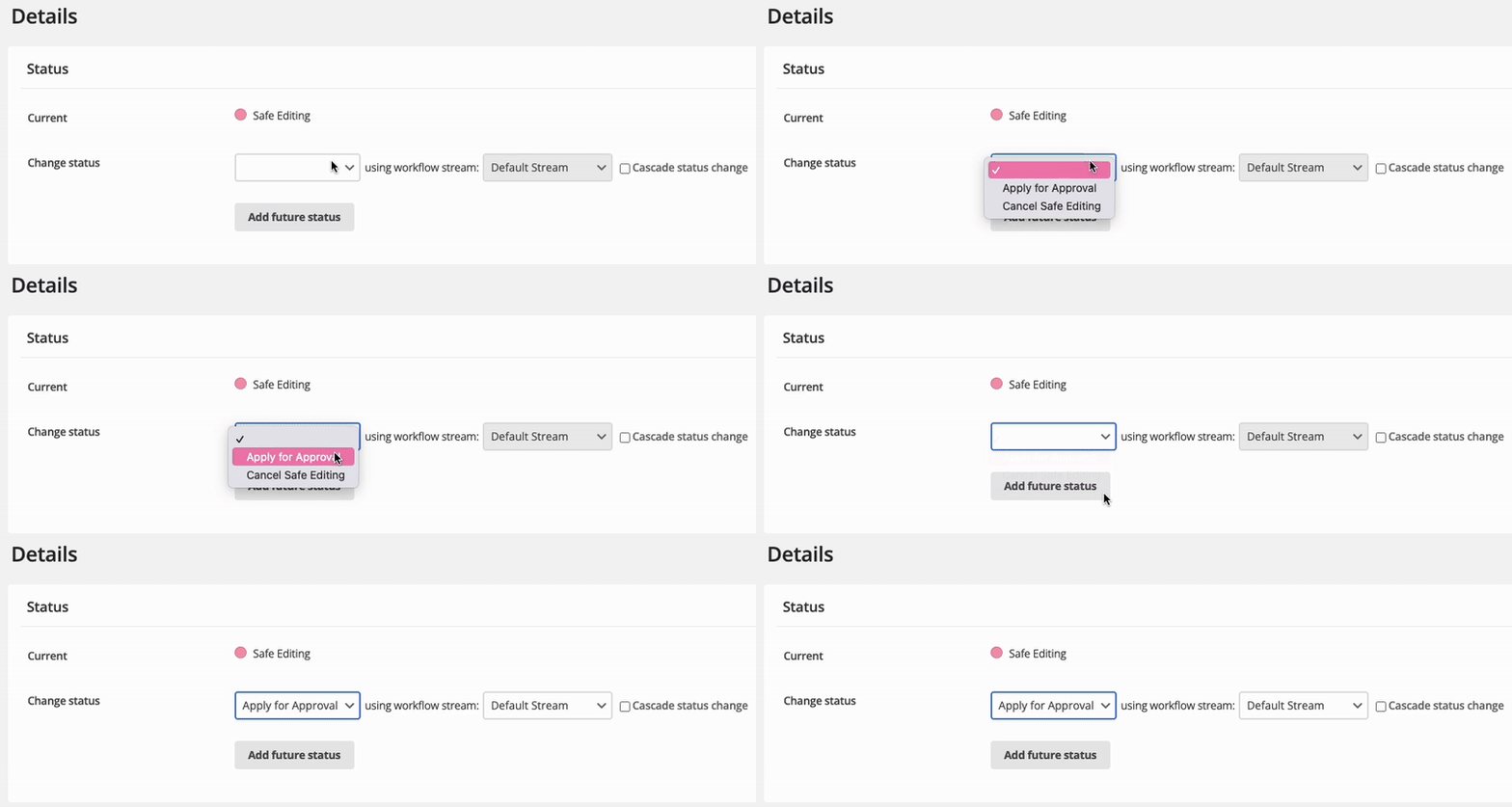
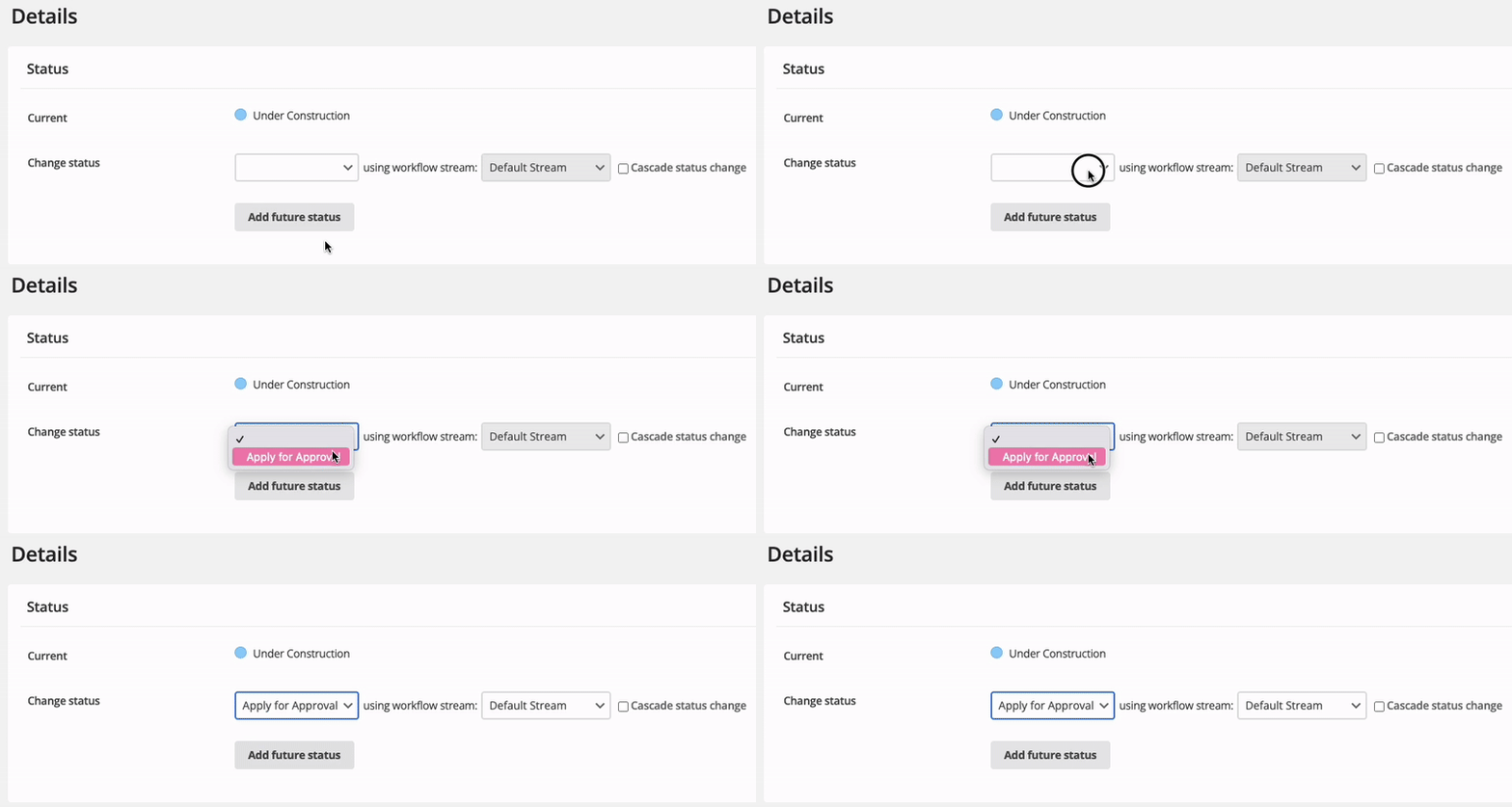
- Ensure that "Apply for Approval" is now showing in the "Change status" box, and then press the green
 button in the right-hand corner of the screen header near the top of the screen.
 - An email will then be sent to your federation web editor asking them to check and approve your change.
You will receive an email letting you know that the change has been approved. When you next log in you should see that the status has turned to "Live".
Note: Once a page has been submitted for approval you can't make any changes to it until it is either approved (or rejected) by the federation.
- Remember, if you want to make any additional changes you will need to repeat the steps above.
- You can see a log of changes and rejections by selecting the "Workflow" screen.
Federation Web Editors
Federation web editors are able to approve any asset created within their federation, and subsequently make it live. This includes any federation asset and any asset created by a WI web editor within that federation.
For federation assets, instead of selecting "Apply for Approval" you can simply self-approve. We strongly suggest having another web editor proof-read your content before it is made live if at all possible.
The options available will vary depending on the status of the asset. Sometimes you will see the option "Approve and Make Live" in one step, other assets will require you to select "Approve", press "Save" and then return to the "change status" drop-down, select "Make Live" and press "Save" again.
Remember. If the asset hasn't turned 'green' (live) then the process isn't complete!
Federation web editors are also responsible for approving edits made by WI web editors to their pages.
Federation web editors will receive an email to alert them to the fact that an approval request has been made. The email will include a link to preview the page so that you can ensure it all looks OK before making the page live. You will also be prompted to enter a comment, which will be stored on the workflow log of the page.
The workflow log, and workflow history can be accessed by any time by either a WI web editor or federation web editor. Simply click "Workflow" in the screen header.
If you are rejecting a page it is a good idea to explain in as much detail as you can why the changes are being rejected. If you are approving a page you might spot something that could be improved, or could just leave some general feedback.