As discussed in the "Assets" chapter, every thing (page, image, PDF etc.) stored within the system is a unique asset. Every asset also has a status, that status determines who will be able to see your page.
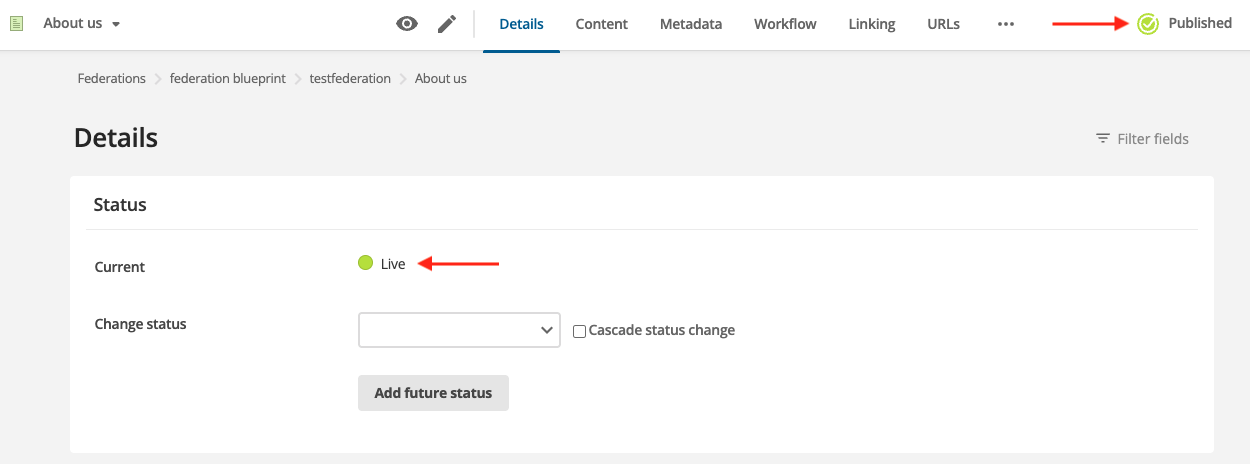
There are a number of possible asset statuses that concern a web editor, each status has a colour associated with it to help you know which state your asset is in. You will see the status of the asset:
- In the screen header at the top of the screen, and under "Status" in the "Details" screen
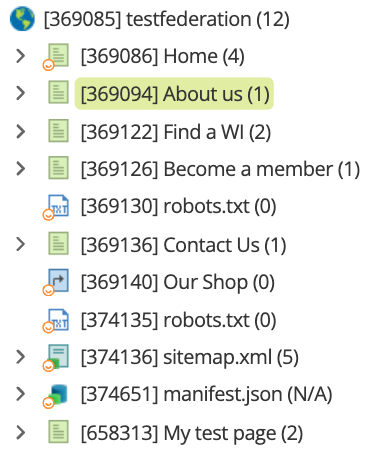
- By clicking the asset in the asset tree
The following outlines the different asset states you are likely to encounter:
Under Construction
When you first create a new page it will be blank and won't yet be ready to be seen by visitors. Accordingly, Squiz sets the status of new pages to "Under Construction" when first created. This means it has not yet been completed and hasn't been approved for publication. Only web editors with the relevant permissions will be able to see assets that are "Under Construction". They cannot be seen on the live website until approved and made live.
To remind you that your asset is not yet published its name will appear in ((brackets)) when displayed in any menus on the site.
Live
When an asset is Live it has been published and can now be seen by all visitors on the live website.
Images and documents, when created in the Media folder, are automatically live, but can only be seen on the live website if they are inserted or linked to from a live page.
Safe Edit
"Safe Edit" mode allows you to make changes to a Live page without thoee changes being seen on the live site until you have finished editing and the page has been approved. Essentially, "Safe Edit" copies the page and allows you to edit that copy. Then, when everything is finished that copy replaces the existing Live version.Visitors only ever see the finished product.
If you haven't made any chances you can safely "Cancel Safe Edit" from the "Details" tab and the asset will return to its previous Live state.
Pending Approval
OR
Safe Edit Pending Approval
Once a WI web editor has made all her changes, she applies for approval to the Federation web editor.
A federation web editor does not need to apply for approval and can approve her own pages.
Once a WI web editor has applied for approval the asset will take on a "Pending Approval" status.. An asset that is pending approval cannot be edited until it has been approved and made live or the changes have been rejected, in which case it will revert back to either "Safe Edit" or "Under Construction".
An Approved page isn't yet visible, a Federation web editor must complete one more action.
Approved To To Live
OR
Safe Edit Approved To Go Live
Once a page has been Approved, the final step is to make the page Live.
Only a Federation web editor can perform this action, Once an asset is made Live it will turn green and the process is complete until the asset is next modified.