The Admin interface visualises content in a hierarchical tree structure known as the "asset tree".
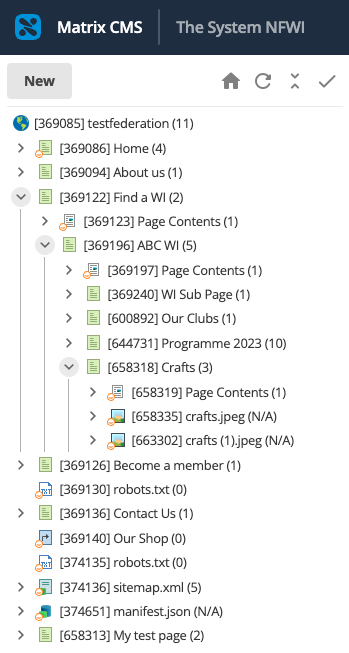
You can use the asset tree to:
- Locate an asset
- Set the location for a new asset
- Set a link location for a new asset
- Quickly see the status of an asset
Clicking on an asset will reveal the status of that asset. Double clicking on an asset or expanding it using the arrow > will reveal any children of that asset.
The asset finder expands top-to-bottom You quickly trace your steps back and find another asset by clicking the name of the parent asset,
The light blue highlighting shows the path you have taken so far, the dark blue highlighting shows the asset you currently have selected in the Asset Finer.
To navigate to the selected asset you can either double-click the name of the asset, or press the Select button at the bottom of the window.Tip:
Tip: If the asset tree is not displaying correctly you might need to expand it by clicking on the tab, and dragging it to adjust the width: