When in "Admin mode" you will notice four main sections.

- The Toolbar
From the Toolbar, you can search for assets and manage your account, including signing out.
- The Screen Header
From the Screen Header, you can create new assets, switch between edit and preview mode, switch between screens (such as Details, Content and Metadata - the available screens will vary depending on the type of asset you are viewing), and view the status of an asset.
- The Asset Tree
The Asset Tree shows the hierarchy of all available assets. You also use the Asset Tree to navigate your site in Admin mode as well as add, delete, move, clone and link assets.
- The Main Panel
The main panel is the area that lets you view and edit the various screens of an asset.
Key sections

The New button allows you to add new assets (pages, images, PDFs etc.) it is a tool you'll use frequently as you start to develop your site. As covered in the next chapter virtually anything you add into Matrix is an asset. From pages to pictures to folders, you'll frequently find yourself coming back to the New button.

Using the Mode Switcher button you can toggle between editing mode and preview mode to ensure that the changes you have made in the editor look the way you expect them to on the site. You need to ensure that the page is saved before you can see the latest preview.
When you have finished "Previewing" your page simply click "Edit" again to return to the editing interface.
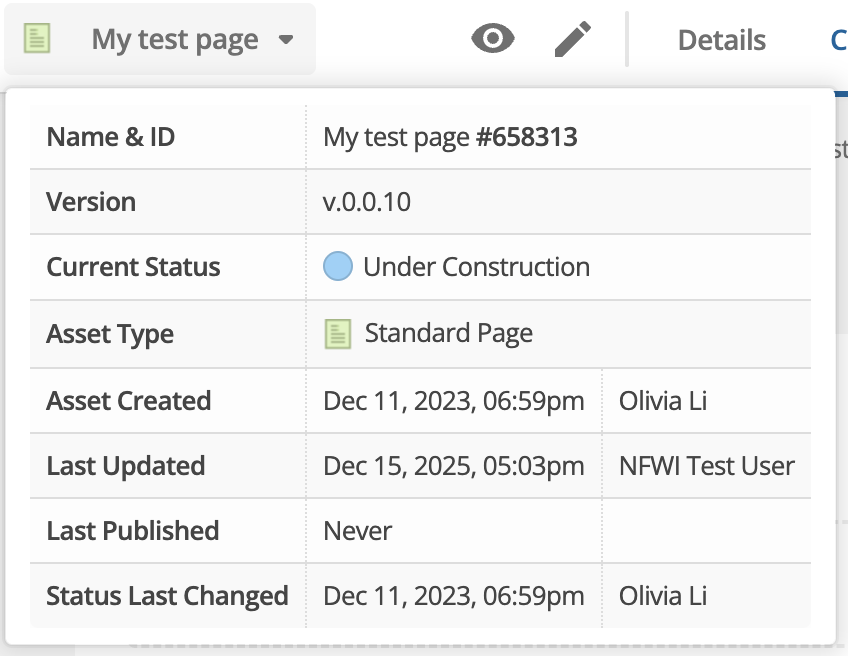
Clicking on the Asset name will reveal the Asset Information section..
You will see:
- The name of the asset and its unique asset ID, explained in the "Assets" section.
- The status of the asset, explained in detail in the "Asset Status" section.
- The type of asset (Standard Page, Image etc.)
- When the asset was created.
- When the asset was last updated.
- When the asset was last published.

The Sign out button allows you to log out of the system. You are also given the option to "Exit Admin Mode" but for security it is better practise to log out of the system when you are finished editing.
To log back in, simply add /_admin on to the end of the URL you'd like to edit, or refer to The Admin Interface for more detailed instructions.
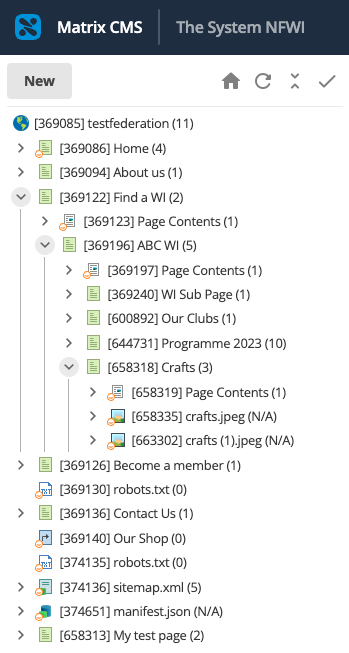
The Asset Tree, discussed in-depth in the Asset Tree chapter, its a tool you will use frequently. You'll mostly use the Asset Tree to navigate around the website when editing. If you decide to edit another page, it is easier to select it in the Asset Tree rather than going back to the website, finding the address and adding /_admin on to the end.
Tip: Please ensure you have saved any work on the current page you are on before navigating to a different page.

When you make a change to a page or asset you need to save it before exiting or switching to another asset. If you do try to navigate away you will be warned that you have unsaved changes and given a chance to save them, but it's always worth keeping an eye on the save button and saving as you go along.
Note that saving your changes does not necessarily make them live. WI web editors will need to submit their changes for approval, and federation web editors will need to ensure their pages are set to live. This is discussed in the "Workflow" chapter.

The Search bar allows you to search for assets in the system, either by keywords or by asset ID. The search is performed globally, so will often show results outside of your federation/WI. For that reason we suggest not being too reliant on the search tool.