The best and easiest way to add videos into your page is to use YouTube.
Although Matrix does offer the ability to upload videos, it can be a bit problematic. The videos might not play on mobile phones, or for users with older web browsers. To ensure your videos will be able to be seen by as many people as possible we strongly suggest using YouTube.
- If you don't already have a YouTube account you can sign up and create a channel on the YouTube website.
- Next you'll need to upload your video to YouTube. If this is your first time uploading a video you will find a useful step-by-step guide on their website.
- Once your video has been uploaded you need to get the "Embed Code". To do this:
- Click on the "Share" button below your video

- From the pop up, click on the "Embed" button
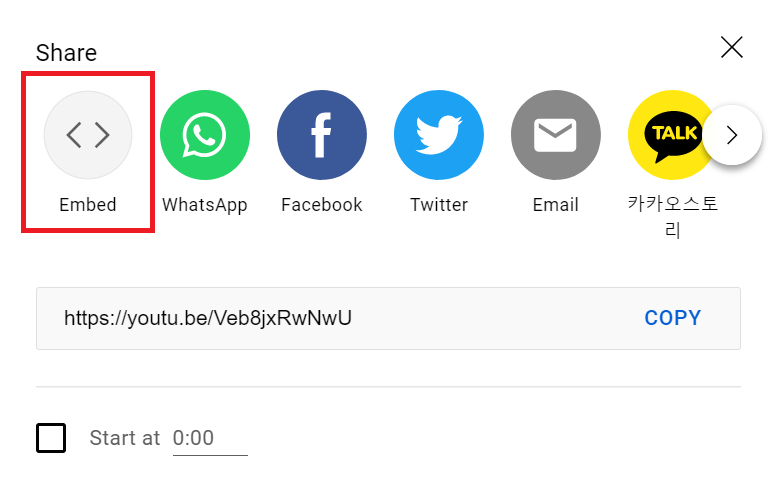
- Next, you will see the embed code. Click on the "Copy" button to copy the code to your clipboard.

- Return to Squiz and go to the content screen of the page that you'd like to embed the video into. Enable editing by clicking the "Edit" button.

- Insert a new "Code" container. This is where we will place the code we copied from YouTube earlier. You can create a new container either above or below your existing content: usually you'll want to insert it below. Click on the "+" icon and select "Code" from the Add a component menu.
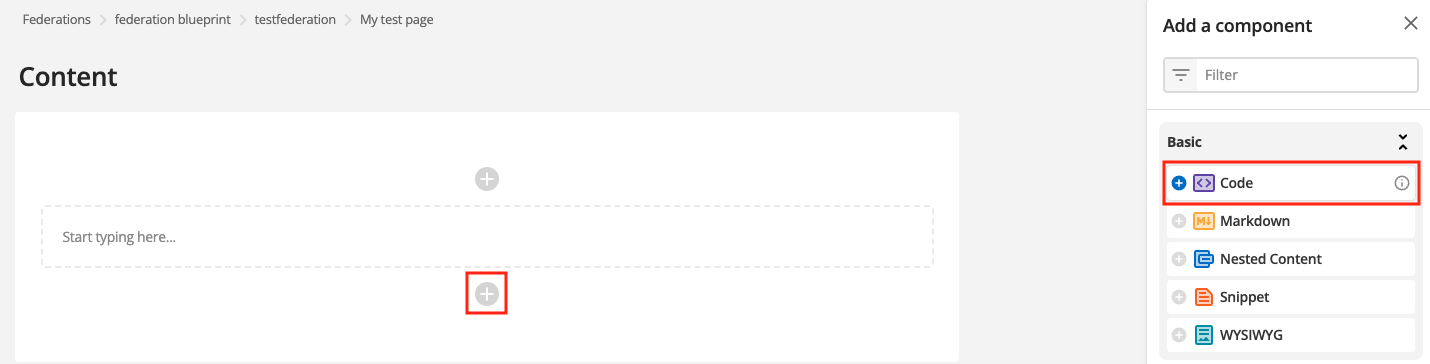
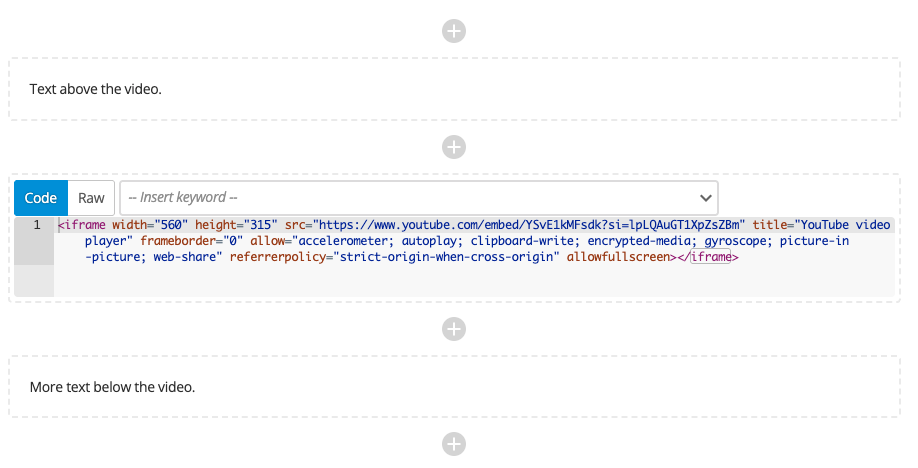
- You should now see a "Code" container among your existing content. Simply paste the code from YouTube into the box.
You'll notice that you don't have any of the usual WYSIWYG tools, and that you can't see a preview of your video - this is normal. 
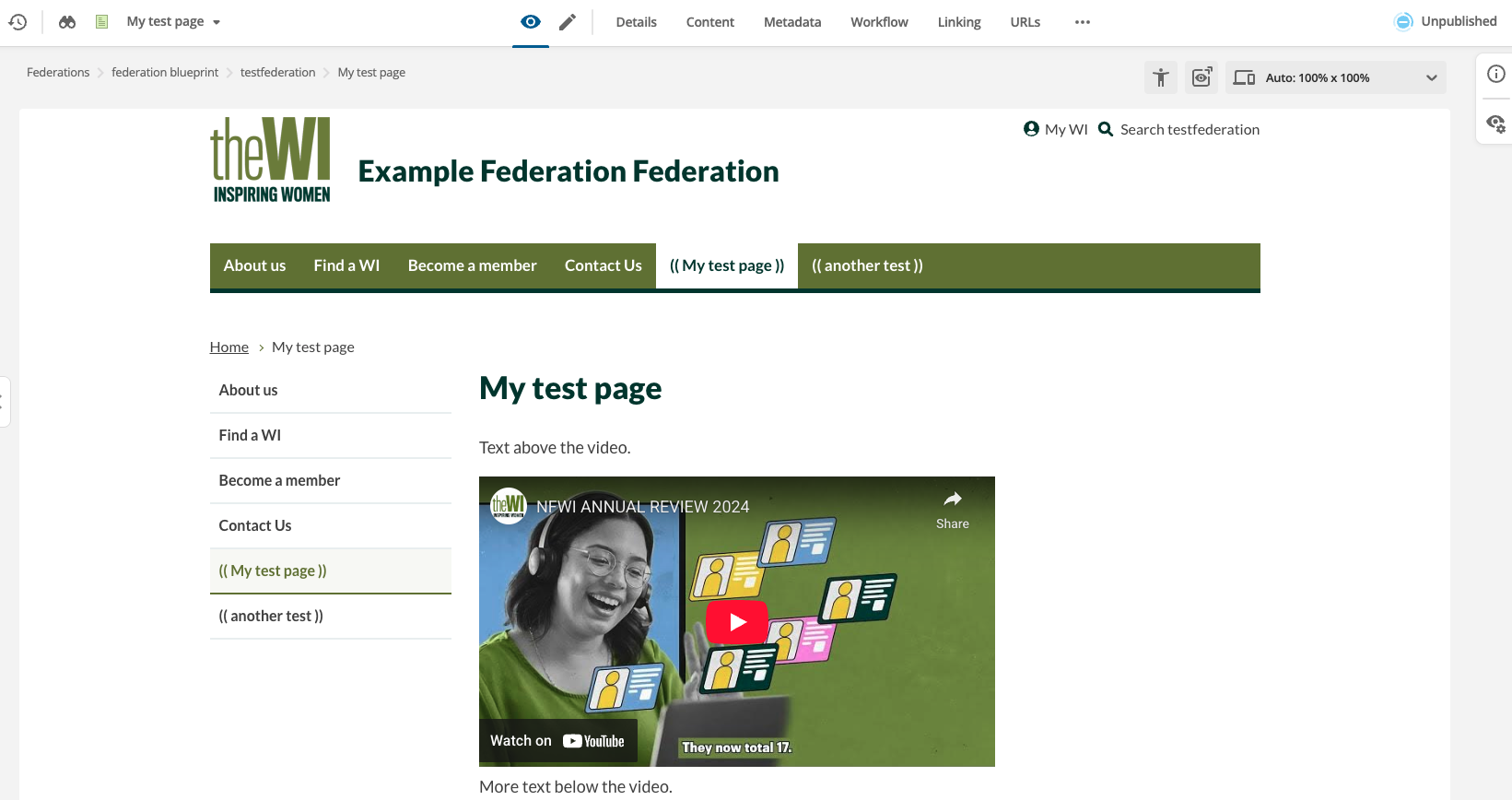
- With the code inserted press the green "Save" button and preview your page. The YouTube video should appear underneath your existing content.

- To insert more content below the YouTube video you can add a new "WYSIWYG container" - refer to step 7, and ensure that you set the "Content Type" to WYSIWYG.
If you have any questions or issues, please don't hesitate to get in touch with o.li@nfwi.org.uk